

As we all know, Linux can be easily installed and run from an external hard drive as a portable Linux OS. This portable Linux OS is very useful as you can take it anywhere and boot it on different computers. However, for users accustomed to Windows, Linux is not easy to use and has some functional limitations, including incompatibility with popular Windows games and Microsoft Office software. Consequently, many Windows users seek to install Windows on external hard drives as portable Windows OS, allowing them to maintain their work and game environments across different locations.
Can Windows be installed and booted from an external hard drive? Yes. If you know Windows To Go (WTG), you've already on the right path. Windows To Go is a Microsoft technology that allows Windows users to create portable Windows that can run on different computers. Although it only exists in Windows Enterprise and Education editions, third-party tools like Hasleo WinToUSB can create Windows To Go using non-Enterprise/non-Education editions. Here we'll detail how to create and run Windows 11/10 To Go from an external hard drive using Hasleo WinToUSB.
The most common reasons to run Windows from an external hard drive include:
- Work anywhere: Carry your complete Windows environment to the office, home, or a client site and simply plug it in.
- Test software safely: Install beta builds, drivers, or unfamiliar software on the portable drive instead of your main system.
- Keep public PCs clean: Boot your own Windows on a shared or borrowed computer without leaving data behind.
- Disaster recovery: Keep a fully configured Windows ready to boot when your internal system drive fails.
- Extra storage on the go: The drive still works as normal storage for files when not booting Windows.
Tutorial: Run Windows 11/10 To Go from an External Hard Drive
This tutorial uses Hasleo WinToUSB, the free Windows To Go creator. Microsoft retired its official Windows To Go program, but WinToUSB keeps the technology available for any Windows 11/10 edition.
Before starting, prepare the following:
- An external hard drive or SSD—USB 3.0 or faster, with at least 64 GB of free space. An external SSD gives the best experience.
- Hasleo WinToUSB—free Windows To Go creation software, download WinToUSB and install it on your current PC.
- A USB-boot-capable computer—you will enable USB boot in the UEFI/BIOS settings during the tutorial.
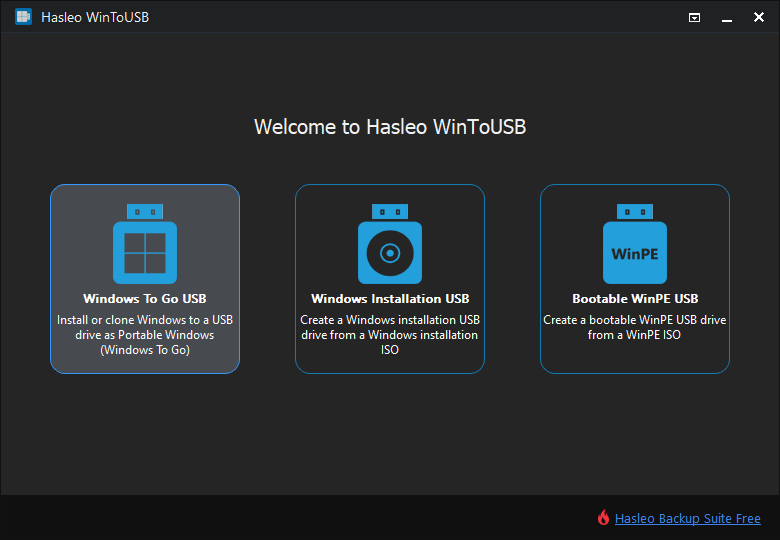
Step 1. Connect the external hard drive to your computer, then download, install, and run Hasleo WinToUSB. Click the "Windows To Go USB" option.
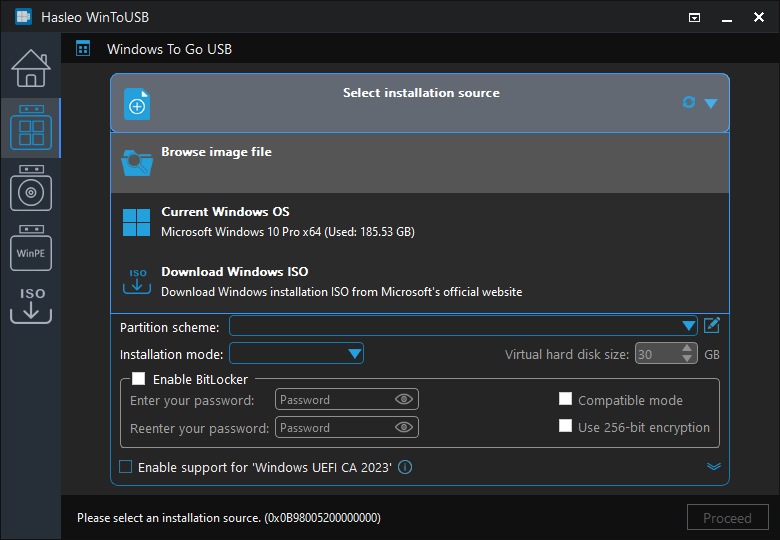
Step 2. Click "Select installation source", then click "Browse image file". Then choose the Windows installation ISO file from the dialog box as installation source. Alternatively, select a CD/DVD drive with Windows installation media.
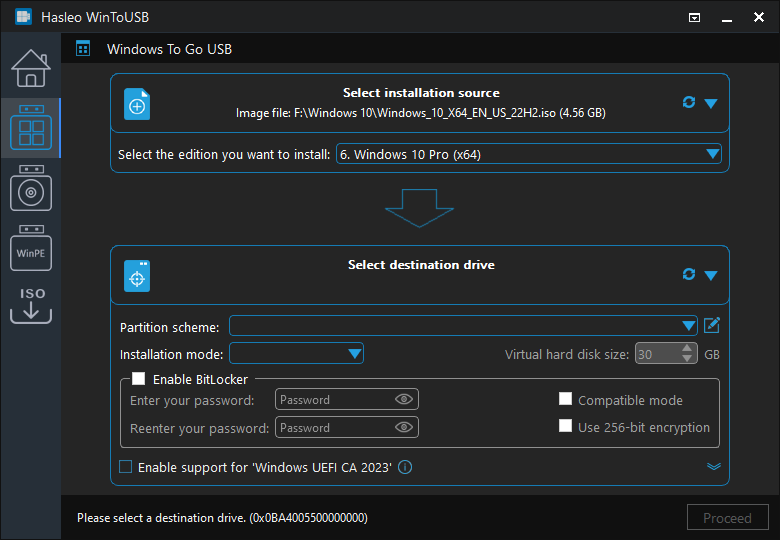
Step 3. Hasleo WinToUSB will scan for and list the available Windows editions. Please select the edition you want to install.
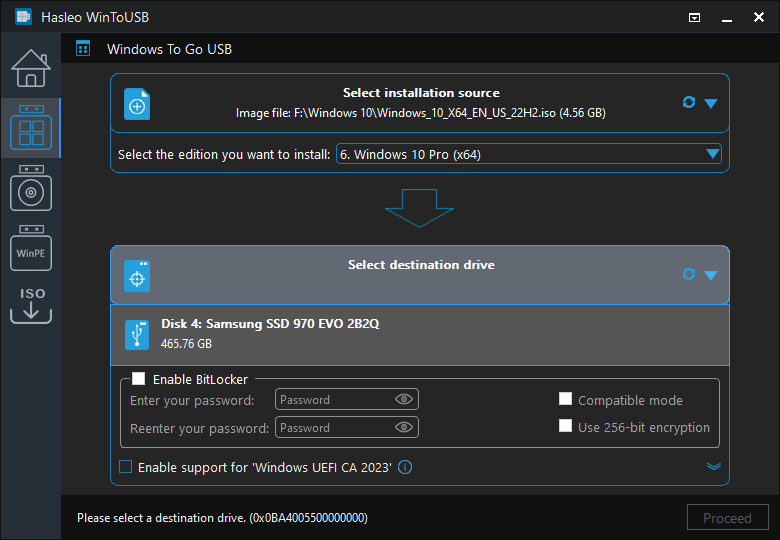
Step 4. Click "Select destination drive", then choose the target drive from the pop-up list. If Hasleo WinToUSB fails to detect the drive, click the  button to initiate drive recognition.
Step 5 Select your preferred partition scheme and installation mode. Optionally, you can specify additional drivers or enable BitLocker encryption for the Windows To Go drive, then click "Proceed".
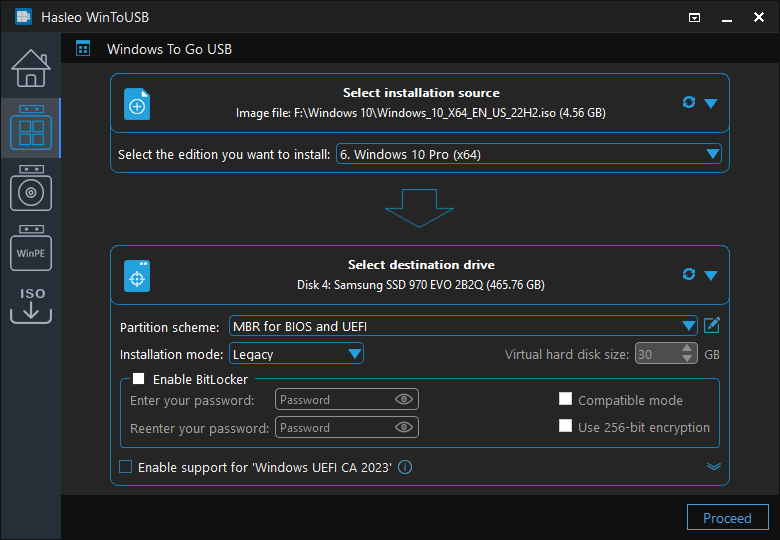
2. If you select "Keep the existing partition scheme" option, you need to manually prepare the external hard drive partitions before this step. View guide: How to Manually Prepare Partitions for Windows To Go.
Step 6. After clicking "Proceed", a confirmation dialog will appear asking whether to continue formatting the drive. Click "Yes" if you accept the operation.
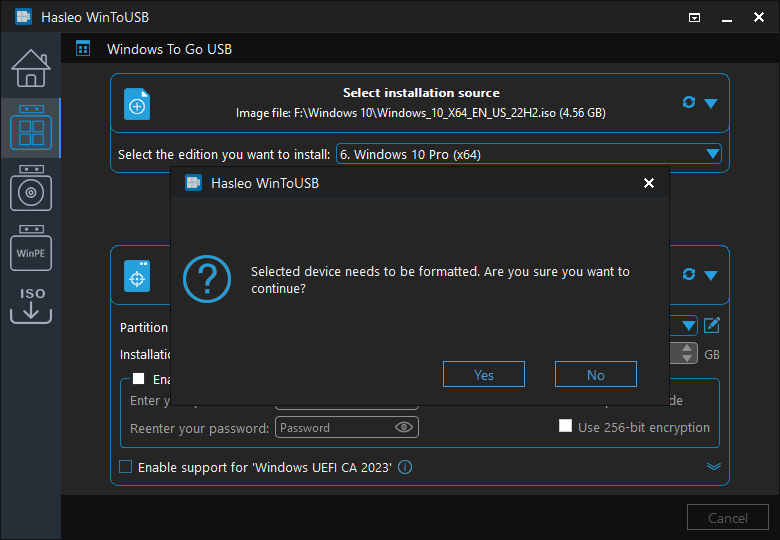
Step 7. After clicking "Yes", WinToUSB initiates Windows installation on the destination drive.
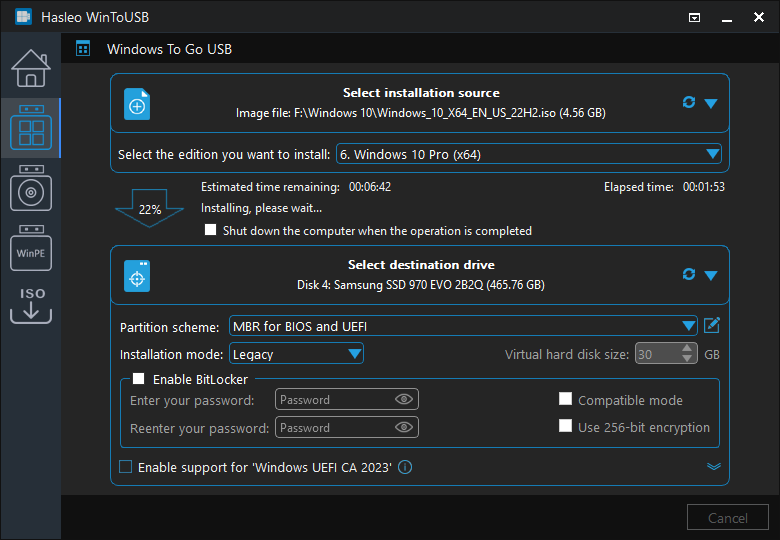
Step 8. The installation will take some time. After installation, restart the computer and enter UEFI/BIOS settings to boot from the external hard drive.
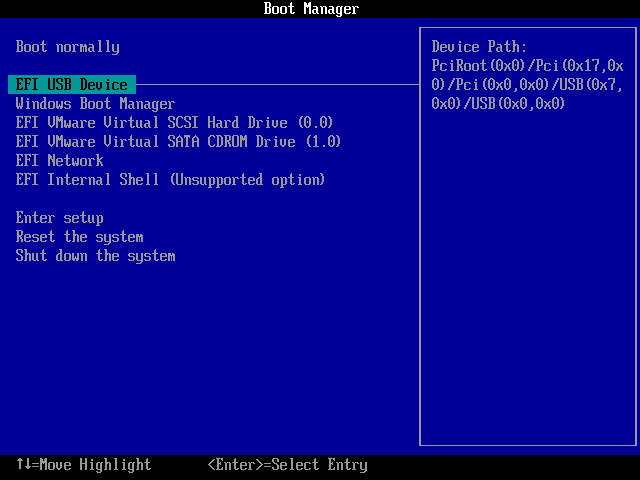
Step 9. A standard Windows installation requires completing all setup steps during the first boot. Afterwards, you can install applications and copy files, etc.
Frequently Asked Questions
A: Portable Windows allows you to carry your customized work environment anywhere. You can boot on any compatible computer while keeping all your applications, settings, and files.
A: External hard drives offer faster performance and larger storage capacity compared to USB flash drives. We recommend external SSDs for the best portable Windows experience.
A: We recommend USB 3.0 or faster external drives. The drive will be formatted during setup, so back up any important data first. USB 2.0 drives will have slower performance.
A: Most applications work fine on portable Windows. Some software with hardware-dependent licensing may need reactivation on different computers, but most portable apps work without issues.
A: Yes, Hasleo WinToUSB supports cloning existing Windows installations to external hard drives. This preserves all your applications, settings, and personal files on the portable Windows.
Summary
This tutorial details how to create Windows 11/10 To Go on an external hard drive using Hasleo WinToUSB, allowing you to carry and run your own portable Windows on any computer.
As professional Windows To Go creation software, Hasleo WinToUSB can also clone Windows 11/10 on external drives as portable Windows.
Related Guides
- How to create Windows 10 To Go without an enterprise edition of Windows 10?
- How to install Windows 10 to an external hard drive as portable Windows 10?
- How to create portable Windows 10 on Non-certification Windows To Go drive?
- How to clone Windows 10 to an external hard drive as portable Windows 10?
- How to run Windows 10 from a USB flash drive?


